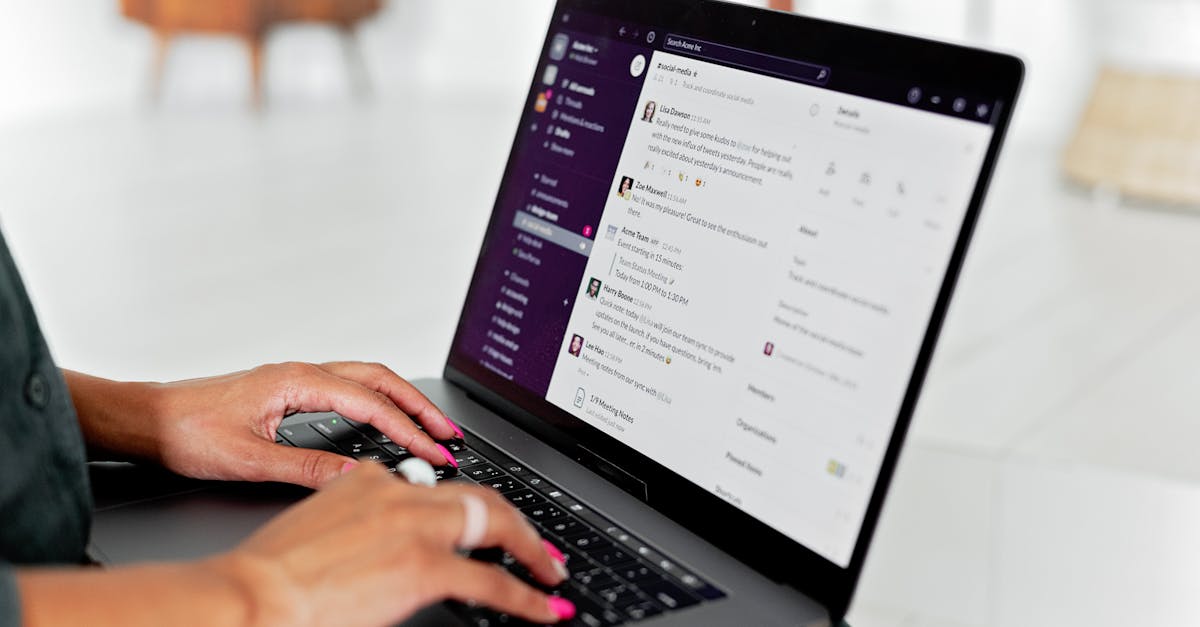
The short answer: in the standard WhatsApp Business app, read receipts and typing indicators work the way they do on any personal WhatsApp account — but the moment you move to a shared team inbox, all three signals (read receipts, typing, reactions) need deliberate configuration or they will create confusion rather than clarity. Here is what that looks like in practice.
Why Read Receipts Matter More in a Team Context
A blue tick on a personal account means one thing: the other person saw your message. On a shared support inbox, a blue tick could mean any agent on the team opened the chat — which tells the customer nothing useful and tells your team even less, unless you have routing rules that assign conversations to specific agents before anyone reads them.
This is the core problem. When three agents can all see the same incoming chat, the first person to open it marks it as read from the customer's perspective. The customer sees blue ticks, assumes someone is handling it, and waits. Meanwhile all three agents assume someone else is handling it. The result is a conversation that looks "read" but is functionally orphaned.
Most support teams running on native WhatsApp Business hit this issue after their first week. The usual workaround — a verbal agreement that "the first one to read it owns it" — breaks down almost immediately under volume. You need a system.
Business App vs API vs Linked-Device Inbox
Before you can make sense of how read receipts and typing indicators behave for your team, you need to know which setup you are actually running on.
WhatsApp Business App (single device or linked devices): Read receipts and typing indicators work exactly like the consumer app. The first agent who opens a chat marks it read. Linked devices (up to four, as of 2024) share the account, but all agents still see the same view — there is no per-agent assignment or ownership. Reactions work natively in the app.
WhatsApp Business API via a shared inbox platform: This is where the operational logic changes. Incoming messages are not "read" until your platform fetches and displays them, and the read receipt trigger is under your platform's control. In OmniDesk, for example, a conversation is marked read only when an assigned agent opens it — not when any agent opens the inbox. That means your customer sees blue ticks only when their assigned agent has actually engaged. Reactions are supported via the WhatsApp Cloud API and displayed inside the shared inbox, not just on a device.
If you are currently deciding which path to take, the WhatsApp Business App vs API comparison covers the full breakdown. For any team handling more than 30 conversations a day, the API route is almost always the right call.
Step-by-Step: Setting Up a Team Inbox That Handles These Signals Properly
Step 1 — Connect your WhatsApp number to a shared inbox platform. You will need a WhatsApp Business API number (separate from your existing Business App number, which cannot be used on the API simultaneously). Most platforms, including OmniDesk, walk you through the Meta verification and number porting in under 30 minutes.
Step 2 — Enable conversation assignment rules before any agent starts responding. This is the critical step most teams skip. Without assignment rules, the read receipt problem from above never goes away. Set up rules based on the first message keyword, the time of day, or the customer's previous agent — whatever maps to how your team is actually structured.
Step 3 — Configure read receipt behavior. In OmniDesk, you can control when a read receipt fires. The default is "mark as read when the assigned agent opens the conversation." You can also set it to "mark as read when any agent views the conversation" if your team operates as a pool rather than by assignment. Pick the one that matches how you actually work, not the one that sounds most professional.
Step 4 — Set up typing indicators for agent responses. When an agent is composing a reply inside the shared inbox, OmniDesk forwards the typing indicator to the customer in real time. Customers see the three-dot animation. This requires no additional configuration — it works from day one. The one thing to watch is agents who start typing, get distracted, and leave a draft sitting for several minutes. From the customer's side, that looks like an agent working on a reply who never sends one. Train your team to close draft replies if they are stepping away.
Step 5 — Enable reactions in your inbox. As of WhatsApp's 2023 update, businesses using the API can receive and send emoji reactions. In a shared inbox, reactions from customers appear as message annotations — you can see that a customer reacted to a specific message, which is useful signal for identifying what resonates. Sending reactions from the agent side is possible via the API but should be used sparingly in a support context: a 👍 to acknowledge receipt is fine; anything that reads as dismissive is not.
Labels, Quick Replies, and Routing: The Foundation Under the Signals
None of the read receipt or typing indicator work makes sense without a labeling and routing system underneath it. If conversations are not assigned, "read" means nothing. If there are no labels, agents have no shared status to reference.
Syncing WhatsApp Business labels to your whole team is covered in detail elsewhere, but the practical version: in a shared API inbox, labels are applied at the conversation level and visible to all agents simultaneously. Label a conversation "Awaiting Payment" and every agent who opens it sees that status before they read a single message. That context prevents the duplicate-contact problem and keeps agents from re-reading 20 messages to understand where a conversation stands.
Quick replies pair naturally with this. Save your most common responses — payment confirmation, shipping update, escalation notice — and your agents can fire an accurate, on-brand reply in under 10 seconds. The customer sees a fast, professional response. The typing indicator fires for a brief moment. Blue ticks appear. The loop is clean.
If you are running more than one WhatsApp number — a common setup for businesses that segment by brand, region, or product line — managing multiple numbers from one dashboard is worth reading before you build out your routing rules. The read receipt and typing indicator behavior applies per-number, not per-account.
Measuring Response Time and What the Signals Are Telling You
Read receipts and typing indicators are not just customer-facing features — they are data. In OmniDesk's analytics, you can see the gap between when a message was received, when it was opened (agent read), and when the first reply was sent. That gap is your actual first-response time, stripped of the fiction that "read" means "handled."
Track these metrics weekly at minimum: - Median time to first reply — filter by channel and by agent to spot bottlenecks. - Conversations reopened after close — a customer who messages again within 24 hours of resolution often signals that the resolution was incomplete. - Reaction rate — if customers are reacting to your messages with 👍 or ✅, that is a positive signal. If reactions are absent but CSAT scores are low, the messaging itself may be the problem.
The teams that improve fastest are the ones that run these reviews with their agents present. Pull a sample of conversations that had a long first-response time and ask the agent what was happening. Usually it is one of two things: the conversation was not assigned promptly, or the agent was waiting on information from another team and had no good way to signal that to the customer. Both are fixable with workflow changes, not more tools.
Frequently Asked Questions
Can customers see when multiple agents are typing at the same time? No. WhatsApp only shows one typing indicator at a time. In a shared inbox platform like OmniDesk, the typing indicator is tied to the assigned agent, so even if another agent has the conversation open, only the assigned agent's typing activity is surfaced to the customer.
Do read receipts fire if a chatbot or AI handles the first response? It depends on how your platform handles the API interaction. In OmniDesk, AI-assisted replies still fire read receipts when the message is fetched and a response is generated — the customer sees blue ticks and gets a reply, often within seconds. If the AI escalates to a human, the conversation is assigned and the human's subsequent activity follows the same rules.
How do I stop agents from accidentally marking conversations as read before they are assigned? Set your inbox to require assignment before opening. In OmniDesk, you can configure a "triage view" where unassigned conversations are visible but cannot be opened until claimed or auto-assigned. This prevents the phantom-read problem entirely and makes your routing rules the single source of truth for conversation ownership.